Unreal Engine: Communication
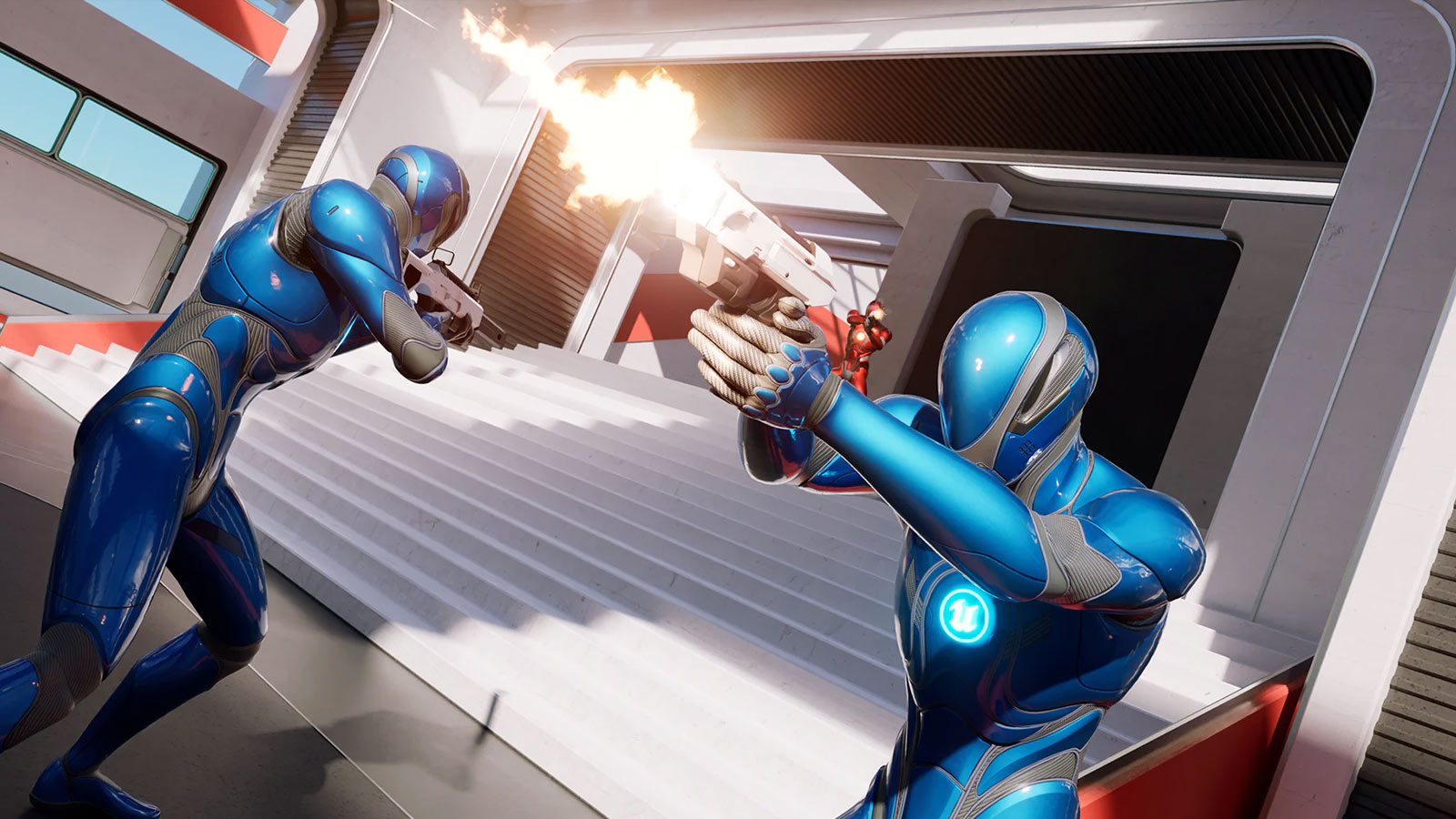
After covering the common mathematics and equations that underpins game development, this week was back into Unreal Engine proper – this time to learn the various ways objects talk to each other. Casting, interfaces, and event dispatchers/delegates turned out to be one of those topics where the choice of mechanism matters as much as the mechanics themselves, because each one trades flexibility against coupling.
As ever, I’ve been committing changes to the repository as I follow along:
Here are my notes from this week’s content.
Casting
- What – Safely casts an object to a specific class type to access class-specific functionality. Helpful for handling interactions between different class and component types.
- When – Ideal when you need to interact with another object differently based on its real type – for example, applying damage from an enemy to a player.
Interfaces
- What – Allow different classes to implement common functionality by adhering to an interface contract. Great for abstracting cross-cutting concerns.
- When – Several unrelated classes need to share behaviour (taking damage, being interactable, etc). Defining this through an interface keeps the classes decoupled.
Events
- What – A broadcast mechanism that notifies objects of state changes without tight coupling. Useful for one-to-many communication.
- When – Perfect for one-to-many broadcasts – e.g. notifying any interested objects that the player died or a level completed.
Casting in Practice
The week’s example: a player picks up a key that opens all doors in the level using that key.
- Create a common base class (e.g.
MeshActorBase) that the doors derive from, so they can all be addressed uniformly - Add a new player input action (IA_Interact) – and remember you can right-click input pins to change their types
- Animate the door with a Timeline:
- Feed it into a Lerp for interpolation
- Shift + click on the curve to create points – it behaves a lot like an animation channel
- Selecting keyframe dots and choosing Auto gives a smooth curve
- Drive the visual change with a Dynamic Material Instance set on properties
- An Is Valid check ensures properties are actually set before using them
Handy casting targets for reaching the major framework objects:
- Get Game Mode → cast to your GameMode class
- Get Player Controller → cast to your controller class
- Get Player Pawn → cast to your pawn class
- Get Actor of Class retrieves instances of a class in the level
The caveats:
- Casting is expensive – especially in Blueprints – so you don’t want it running every frame
- You have to store references to the objects you cast to
- It hampers reusability: your code now depends on concrete types, so changes ripple
Interfaces in Practice
A flexible way to define a set of functionality that any class can implement.
Creating one:
- Blueprint → Blueprint Interface
- Interfaces are read-only with no logic – just function signatures
- Add functions in the Functions panel
Implementing one:
- In the implementing Blueprint: Class Settings → Interfaces → Add
- Drag from a pin to your interface (the message icon) to call it without a cast
- With a hit result,
Out Hit Actor→Get Display Nameis handy for feedback/debugging Get All Actors With Interface→For Each Loop→ callBPI_Interacton each
C++ side:
- No
Iprefix needed in the implementation code - Declare the functions in the header with
UFUNCTION - Checks and helpers:
UKismetSystemLibrary::DoesImplementInterface()OutHit.GetActor()->GetClass()->ImplementsInterface(UInteract::StaticClass())UGameplayStatics::GetAllActorsWithInterface(GetWorld(), UInteract::StaticClass(), FoundActors)
Events / Delegates
Blueprint Event Dispatchers:
- Created in the Event Dispatchers panel on the left of the Blueprint editor
- Selecting the dispatcher lets you define inputs on the right - payloads the broadcast carries
- Other objects can then bind to the dispatcher, treating it like a function call with data
Binding to Event Dispatchers:
- Store a reference to the broadcasting object via a variable
- Right-click the reference → Assign [Dispatcher] – this creates a bound event automatically
- Alternatively: drag from the event pin → Event Dispatchers → create a matching event; the result is a nested function on the left side (e.g.
LightSwitchedOn_Dispatcher) - The Construction Script runs purely in-editor - useful for setting up bindings/defaults at design time
C++ delegates use the dynamic multicast macros:
DECLARE_DYNAMIC_MULTICAST_DELEGATE(FMyEvent);
DECLARE_DYNAMIC_MULTICAST_DELEGATE_OneParam(FMyEvent, float, Value);
DECLARE_DYNAMIC_MULTICAST_DELEGATE_TwoParams(FMyEvent, float, X, float, Y);
Naming conventions for delegate types use suffixes:
FLightSwitchedOnSignature→*SignatureOnLightSwitchedOnDelegate→*Delegate
Binding in C++:
// In BeginPlay, guarded by a validity check:
if (Ref)
{
    Ref->OnLightSwitchedOnDelegate.AddUniqueDynamic(this, &AFPDoor::OpenDoor); // ignores duplicates
    // .AddDynamic(...) instead would add duplicate bindings
}
Exposing to Blueprints: mark the function UFUNCTION(BlueprintCallable) and it appears in the Functions dropdown, callable from any Blueprint.
Timelines, revisited: setting a Scalar Parameter Value by name on the dynamic material instance drives the visual (e.g. door glow) from the timeline.
Notes on things that stood out
The recurring theme this week was coupling: casting hard-wires you to a concrete class, interfaces let you talk to anything that promises a behaviour, and delegates invert the relationship entirely – the broadcaster doesn’t know or care who’s listening. Choosing between them is an architecture decision, not just syntax.
Also: AddUniqueDynamic vs AddDynamic is a classic landmine – the latter will happily stack duplicate bindings until your door opens five times a frame.