Unreal Engine: Gameplay Ability System

Last week was inventory systems; this week, the Gameplay Ability System (GAS) – the framework that gives designers and artists a way to compose abilities, effects, and attributes without writing bespoke code for every interaction.
GAS is famously one of the more complex systems in Unreal – the course eased into it with a well-known example: the Half-Life gravity gun. The gun has the ability to lift; the wooden crate has the ability to be lifted – a target→source relationship.
It’s a deceptively simple framing for a system designed to solve a very real scaling problem: a VR simulation with tools and objects having different interactions, or a game with many weapons and many abilities, gets complicated fast without a unifying abstraction.
Since there was already a straightforward example project provided, I took notes and adapted the example into my own repository:
sawnoff-studios/gameplay-ability-system
Enabling the Plugins
- Gameplay Abilities
- Gameplay Tags Editor
C++ Setup
Add to PrivateDependencyModuleNames in Build.cs:
GameplayAbilitiesGameplayTagsGameplayTasks
The Ability System Component
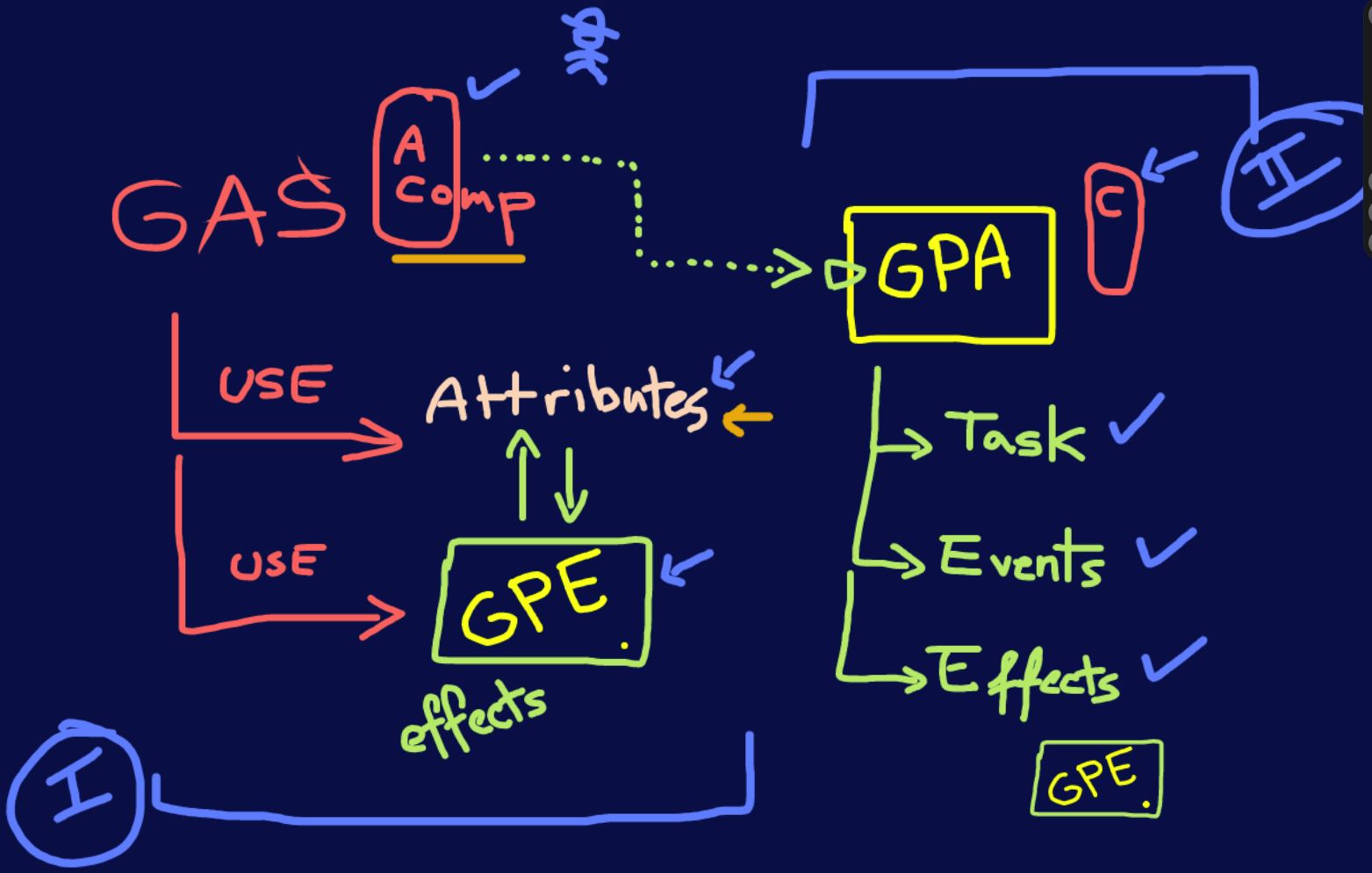
The central hub is the UAbilitySystemComponent - the bridge between Actors and the rest of GAS.
- Any Actor intending to interact with GAS needs its own Ability System Component, or access to one on its PlayerState or Pawn
- Implement
UAbilitySystemComponentandIAbilitySystemInterface, whoseGetAbilitySystemComponent()method returns the component - Include
AbilitySystemComponent.hin the header
Gameplay Attributes and Attribute Sets
Attribute Setss provide consistent, reusable groups of attributes, which Gameplay Abilities can access through reflection.
Attributes are worth the ceremony because they:
- Track default and current values separately – making temporary modifications (buffs/debuffs) far easier
- Can replicate to all clients like normal properties
- Save time “designing ideal combinations” of property values, via data tables
Creating an attribute set in C++:
- Create an instance of an
AttributeSetclass - Include
AbilitySystemComponent.h - Use the custom macro to expose properties to the reflection system
- Assign defaults in the constructor using
Init+ property name (e.g.InitHealth(100))
Using the set:
- Add the attribute set as a property in the C++ parent class
- Assign your custom attribute set class and give it a value in
BeginPlay() - To set defaults in the Blueprint instead: show inherited variables in the My Blueprint sidebar, find the Ability System Component (e.g.
ASC_01), and set its Default Starting Data to a data table
Data Tables
- Choose AttributeMetaData as the row structure
- Naming convention for rows:
[class name without prefix].[attribute name]- e.g.CPPAttrSet_01.Health_01 - Attach the data table in the Actor Blueprint editor as above
Gameplay Effects
Gameplay Effects apply changes to the Actors targeted by Gameplay Abilities:
- The effect stays attached to the target Actor until removed – optionally with a limited lifetime, then expiring
- Effects can process information from both the target Actor and the ability applying them
Creating one: inherit from the GameplayEffect class, select an attribute, choose a Modifier Op, add a value - then call the Apply Gameplay Effect node. The attribute changes and updates at the end of the frame.
Gameplay Abilities
A Gameplay Ability is an action or procedure that an Actor can own and trigger repeatedly – spells, special attacks, item effects.
- Inherit from the
GameplayAbilityclass - Grant it with the Give Ability node (the Target pin specifies the Actor) – the Ability System Component owns the add/remove of abilities
- Activate via TryActivateAbilityByClass
Lifecycle and gotchas:
OnEndAbilitycan be called from anywhere and terminates execution - rerun Give Ability to make the ability usable again- When activating via the
ActivateAbilityevent, use the CommitAbility node first – and check its output with a Branch:true→ ability is registered and ready to usefalse→ call EndAbility to terminate
- Debug messages are strongly recommended at this stage
- Gameplay Effects can run after a successful commit
- Effects can use the ability’s owner, or references from other actors – so activating an ability can affect the activator and third parties (who also need their own Ability System Components)
Gameplay Tasks
Tasks belong to a Gameplay Ability object and execute specific actions – more complex than Gameplay Effects, and composable to build custom abilities.
Task nodes have multiple execution output pins:
- On Finish, On Landed, On Target Location Reached, Did Not Spawn …
The default execution output fires immediately; the named pins fire later, depending on the task’s functionality.
Putting it together - the many-weapons scenario: create weapon-related attributes (power, damage, reload time…), create gameplay effects that change those attributes, activate them via GameplayAbility, then layer the presentation (sound, animation, VFX) on top.
Gameplay Events
Events act as pipelines into GameplayAbilities:
- Add a Wait Gameplay Event node in the ability
- Build event data with the Make GameplayEventData node
- Fire it with Send Gameplay Event to Actor, setting the Event Tag property
- Access the payload inside the ability with a Break node from the Wait node’s Payload pin
Effects can also use Gameplay Effect Calculations – including custom calculations with complex logic (e.g. combining multiple attributes).
Events execute immediately or can be delayed; OnEndAbility terminates all events and tasks alike, and TryActivateAbilityByClass restarts the cycle.
Gameplay Tags
Tags limit and manage the execution of effects, tasks, and events:
- Abilities can apply a list of tags to the owning Actor when activated
- Lists of tags can block activation or automatically cancel a running ability
- Manual cancelling/blocking is also possible in code
Creating them:
- In the GameplayAbility’s Details panel → Tags → dropdown → Manage Gameplay Tags
- This opens the Gameplay Tag Manager, backed by
DefaultGameplayTags.ini - Add new tags, or sub-tags to organise the tree
Tags must be globally unique – duplicates error on creation.
Notes on things that stood out
GAS is the biggest “framework thinking” week of the course so far: everything - attributes, effects, abilities, tasks, events, tags - is data designed to be composed by people who aren’t writing code. The gravity gun framing at the start is the honest elevator pitch: the gun declares it lifts, the crate declares it can be lifted, and nobody wires them together by hand.
My lasting impression after the first pass: the ability lifecycle (Give → TryActivate → Commit → End → Give again) is where things actually break, and the course’s recommendation to lean on debug messages there is well-founded - the system fails silently more often than it errors.
Related Posts
2025-09-24
2025-09-16
2025-08-27