Automated Unreal Engine Build Server on AWS Part 1: Base AMI

After completing my CG Spectrum Unreal Engine course, I wanted to automate the build and release process for my game prototype. While building locally, zipping artefacts, and uploading somewhere would have worked, I aimed for something more robust: trigger a GitHub release that automatically provisions a Spot Instance, builds the project, and uploads results to S3.
The Problem
My initial approach involved manually configuring an EC2 instance, installing dependencies by hand, and registering a GitHub self-hosted runner. I created an AMI from that instance and configured GitHub Actions to use it.
It worked – until it didn’t. After a day or two, builds started failing. The culprit: the GitHub runner token had expired. Self-hosted runners require fresh tokens periodically, and my static AMI had no mechanism to renew them.
This revealed a broader issue: if I wanted different AMIs for different Unreal Engine versions, I’d need to repeat the entire manual setup for each one.
The Solution
EC2 Image Builder solves both problems. It automates AMI creation and makes the process reusable across engine versions. What seemed straightforward by hand became significantly more complex when automated—but worth it for long-term maintainability.
This is Part 1 of a three-part series:
- Creating a base AMI for building an Unreal Engine project (this post)
- Extending the base AMI with a specific Unreal Engine version
- Configuring the AMI as a GitHub Actions self-hosted runner with automatic token refresh
The complete code is available at: sawnoff-studios/unreal-build-server-image
Contents
This post covers creating the base AMI for building an Unreal Engine project on an EC2 instance:
- Architecture Overview – a high-level architecture overview
- Required Tools – tools required for cloning and building an Unreal Engine project
- Manual Steps – manual steps taken when building the AMI by hand
- Base Image AWS Resources – AWS resources required to build the AMI base image
- EC2 Image Builder IAM policy – IAM policy used by the EC2 Image Builder service to access AWS resources
- Deployment via GitHub Actions – deploying the base image pipeline using GitHub Actions
Architecture Overview
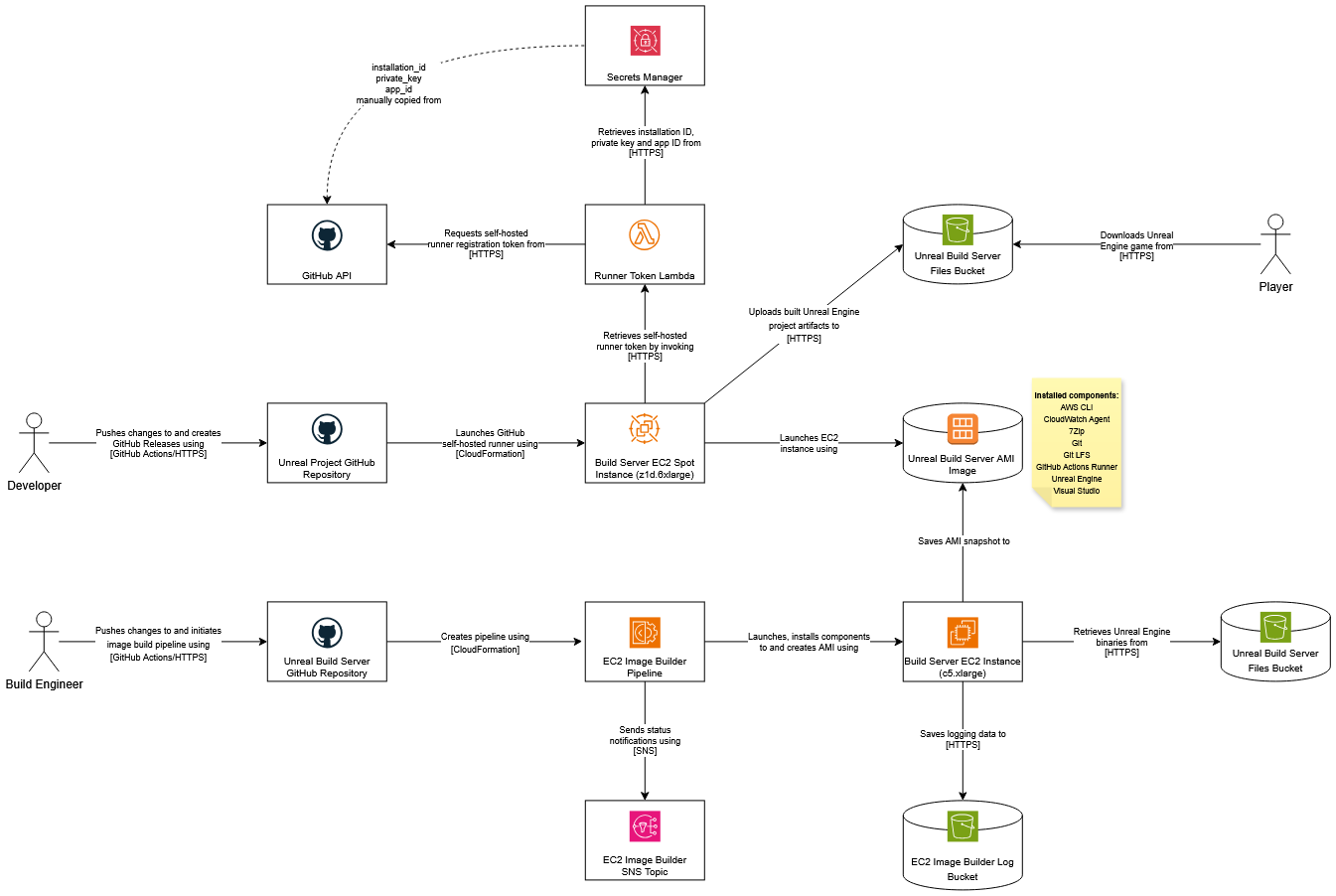
This architecture diagram uses C4 component-level notation to visualise how pieces fit together. Key components include EC2 Image Builder for AMI creation, a Lambda function for GitHub token management, and S3 for artefact storage.
Required Tools
Building an Unreal Engine project on EC2 requires several components:
| Tool | Purpose | Notes |
|---|---|---|
| Visual Studio Community | C++ compilation | Minimal workload to reduce build time and cost |
| Git for Windows | Repository cloning | Solo dev chose GitHub over Perforce for cost reasons |
| Git LFS | Large binary files | Keeps repository small while supporting game assets |
| Epic Games Launcher | Unreal Engine installation | Login automation requires workarounds (covered in Part 2) |
| 7-Zip | artefact compression | Multi-threaded compression cuts zip time significantly |
| AWS CLI | S3 uploads | Required for pushing built artefacts to public buckets |
| CloudWatch Agent | Detailed monitoring | Tracks memory, filesystem space, and per-process metrics |
Why these choices?
Unreal Engine is memory-intensive, so CloudWatch detailed monitoring helps track memory pressure during builds. Windows File Explorer lacks multithreaded zipping, making 7-Zip essential when compressing gigabytes of artefacts – every minute saved reduces EC2 costs.
Manual steps (What I did first)
Before automating, I established a working baseline:
- Create an EC2 instance and install all required tools
- Configure the “GitHub Actions Runner Service” to run as Administrator
- Register the runner with my GitHub organisation
- Create an AMI from the configured instance
- Set up a GitHub workflow using
runs-on:[self-hosted, unreal-engine] - Ensure runner tags match the workflow’s
runs-onspecification
These manual steps informed the automated components that follow.
Base Image AWS Resources
The infrastructure splits into two halves: the base image (common tools) and the Unreal Engine version-specific image (engine binaries).
EC2 instance role
The instance role uses two managed policies:
- AmazonSSMManagedInstanceCore – Enables SSM Agent communication for build orchestration
- EC2InstanceProfileForImageBuilder – Allows Image Builder to launch instances, create AMIs, and replicate across regions
  InstanceRole:
    Type: AWS::IAM::Role
    Metadata:
      Comment: Role to be used by instance during image build.
    Properties:
      RoleName: !Sub ${ResourceName}-InstanceRole
      ManagedPolicyArns:
        - Fn::Sub: arn:${AWS::Partition}:iam::aws:policy/AmazonSSMManagedInstanceCore
        - Fn::Sub: arn:${AWS::Partition}:iam::aws:policy/EC2InstanceProfileForImageBuilder
      AssumeRolePolicyDocument:
        Version: "2012-10-17"
        Statement:
          - Action:
              - sts:AssumeRole
            Effect: Allow
            Principal:
              Service:
                - !Sub 'ec2.${AWS::URLSuffix}'
      Path: /executionServiceEC2Role/
The /executionServiceEC2Role path groups related roles hierarchically – a best practice for IAM organisation.
Instance role logging policy
Allows the instance to save build logs to S3 for troubleshooting.
  InstanceRoleLoggingPolicy:
    Type: AWS::IAM::Policy
    Metadata:
      Comment: Allows the instance to save log files to an S3 bucket.
    Properties:
      PolicyName: !Sub ${ResourceName}-InstanceRoleLoggingPolicy
      Roles:
        - Ref: InstanceRole
      PolicyDocument:
        Version: 2012-10-17
        Statement:
          - Action:
              - s3:PutObject
            Effect: Allow
            Resource:
              - Fn::Join:
                  - ''
                  - - 'arn:'
                    - !Sub ${AWS::Partition}
                    - ':s3:::'
                    - !ImportValue ImageBuilderLogBucketName
                    - '/*'
Instance profile
Passes the instance role to the EC2 instance.
  InstanceProfile:
    Type: AWS::IAM::InstanceProfile
    Properties:
      InstanceProfileName: !Sub ${ResourceName}-InstanceProfile
      Roles:
        - Ref: InstanceRole
Image builder infrastructure configuration
Defines the compute environment.
  InfrastructureConfiguration:
    Type: AWS::ImageBuilder::InfrastructureConfiguration
    Properties:
      Name: !Sub ${ResourceName}
      InstanceTypes:
        - !Ref InstanceType
      InstanceProfileName:
        Ref: InstanceProfile
      SnsTopicArn: !Ref SnsTopicArn
      Logging:
        S3Logs:
          S3BucketName: !ImportValue ImageBuilderLogBucketName
Image builder components
Each component installs and verifies a tool via PowerShell. CloudFormation’s lack of syntax highlighting makes scripting awkward, but the patterns are consistent: download the installer, run it silently, verify the binary exists.
AWS CLI component
Provides functionality for uploading the build artefacts to S3.
  AwsCliComponent:
    Type: AWS::ImageBuilder::Component
    Properties:
      Name: Install-AWS-CLI
      Version: 1.0.0
      Description: Install AWS CLI for Windows
      Platform: Windows
      Data: |
        name: Installs AWS CLI
        description: Installs AWS CLI using the official installer
        schemaVersion: 1.0

        phases:
          - name: build
            steps:
              - name: InstallAwsCli
                action: ExecutePowerShell
                inputs:
                  commands:
                    - |
                      $url = "https://awscli.amazonaws.com/AWSCLIV2.msi"
                      $installer = "C:\Windows\Temp\AWSCLIV2.msi"
                      Invoke-WebRequest `
                        -Uri $url `
                        -OutFile $installer

                      Start-Process `
                        -FilePath "msiexec.exe" `
                        -ArgumentList "/i C:\Windows\Temp\AWSCLIV2.msi /qn /norestart" `
                        -Wait

              - name: VerifyAwsCli
                action: ExecutePowerShell
                inputs:
                  commands:
                    - |
                      aws --version
The /qn flag ensures silent installation; /norestart prevents abrupt reboots mid-build.
CloudWatch component
Installing CloudWatch follows a similar process.
  CloudWatchAgentComponent:
    Type: AWS::ImageBuilder::Component
    Properties:
      Name: Install-CloudWatch-Agent
      Version: 1.0.0
      Description: Install Amazon CloudWatch Agent for Windows
      Platform: Windows
      Data: |
        name: Installs CloudWatch Agent
        description: Installs Amazon CloudWatch Agent using the official installer
        schemaVersion: 1.0

        phases:
          - name: build
            steps:
              - name: DownloadCloudWatchAgent
                action: ExecutePowerShell
                inputs:
                  commands:
                    - |
                      $url = "https://s3.amazonaws.com/amazoncloudwatch-agent/windows/amd64/latest/amazon-cloudwatch-agent.msi"
                      $installer = "C:\Windows\Temp\amazon-cloudwatch-agent.msi"
                      Invoke-WebRequest `
                        -Uri $url `
                        -OutFile $installer

              - name: InstallCloudWatchAgent
                action: ExecutePowerShell
                inputs:
                  commands:
                    - |
                      Start-Process `
                        -FilePath "msiexec.exe" `
                        -ArgumentList "/i C:\Windows\Temp\amazon-cloudwatch-agent.msi /qn /norestart" `
                        -Wait

              - name: VerifyCloudWatchAgent
                action: ExecutePowerShell
                inputs:
                  commands:
                    - |
                      $agentPath = "C:\Program Files\Amazon\AmazonCloudWatchAgent\amazon-cloudwatch-agent.exe"
                      if (!(Test-Path $agentPath)) {
                        throw "CloudWatch Agent not found at $agentPath"
                      }
                      Write-Host "CloudWatch Agent installed successfully"
7-Zip component
The 7-Zip installer uses the /S switch to ensure the application is installed silently.
  7ZipComponent:
    Type: AWS::ImageBuilder::Component
    Properties:
      Name: Install-7Zip
      Version: 1.0.0
      Description: Install 7-Zip for Windows
      Platform: Windows
      Data: |
        name: Installs 7-Zip for Windows
        description: Installs 7-Zip using the official installer
        schemaVersion: 1.0

        phases:
          - name: build
            steps:
              - name: Download7Zip
                action: ExecutePowerShell
                inputs:
                  commands:
                    - |
                      $url = "https://github.com/ip7z/7zip/releases/download/26.02/7z2602-x64.exe"
                      $installer = "C:\Windows\Temp\7ZipInstaller.exe"
                      Invoke-WebRequest `
                        -Uri $url `
                        -OutFile $installer

              - name: Install7Zip
                action: ExecutePowerShell
                inputs:
                  commands:
                    - |
                      Start-Process `
                        -FilePath "C:\Windows\Temp\7ZipInstaller.exe" `
                        -ArgumentList "/S" `
                        -Wait

              - name: Verify7Zip
                action: ExecutePowerShell
                inputs:
                  commands:
                    - |
                      $7zipPath = "C:\Program Files\7-Zip\7z.exe"
                      if (!(Test-Path $7zipPath)) {
                        throw "7-Zip not found at $7zipPath"
                      }
                      Write-Host "7-Zip installed successfully"
Git component
The Git for Windows installer accepts /VERYSILENT and /NORESTART for an unattended installation.
  GitComponent:
    Type: AWS::ImageBuilder::Component
    Properties:
      Name: Install-Git
      Version: 1.0.0
      Description: Installs Git for Windows
      Platform: Windows
      Data: |
        name: Install Git for Windows
        description: Installs Git using the official Git for Windows installer
        schemaVersion: 1.0

        phases:
          - name: build
            steps:
              - name: DownloadGit
                action: ExecutePowerShell
                inputs:
                  commands:
                    - |
                      $url = "https://github.com/git-for-windows/git/releases/download/v2.55.0.windows.2/Git-2.55.0.2-64-bit.exe"
                      $installer = "C:\Windows\Temp\GitInstaller.exe"
                      Invoke-WebRequest `
                        -Uri $url `
                        -OutFile $installer

              - name: InstallGit
                action: ExecutePowerShell
                inputs:
                  commands:
                    - |
                      Start-Process `
                        -FilePath "C:\Windows\Temp\GitInstaller.exe" `
                        -ArgumentList "/VERYSILENT /NORESTART" `
                        -Wait

              - name: VerifyGit
                action: ExecutePowerShell
                inputs:
                  commands:
                    - |
                      git --version
Git LFS component
Git LFS uses the /SP- switch, disabling “This will install… Do you wish to continue?” message boxes. /VERYSILENT, /SUPPRESSMSGBOXES and /NORESTART ensures a silent installation, suppresses message boxes, and ensures no system restart.
  GitLfsComponent:
    Type: AWS::ImageBuilder::Component
    Properties:
      Name: Install-Git-LFS
      Version: 1.0.0
      Description: Installs Git LFS for Windows
      Platform: Windows
      Data: |
        name: Install Git for Windows
        description: Installs Git LFS using the official Git LFS for Windows installer
        schemaVersion: 1.0

        phases:
          - name: build
            steps:
              - name: DownloadGitLfs
                action: ExecutePowerShell
                inputs:
                  commands:
                    - |
                      $url = "https://github.com/git-lfs/git-lfs/releases/download/v3.4.0/git-lfs-windows-v3.4.0.exe"
                      $installer = "C:\Windows\Temp\GitLfsInstaller.exe"
                      Invoke-WebRequest `
                        -Uri $url `
                        -OutFile $installer

              - name: InstallGitLfs
                action: ExecutePowerShell
                inputs:
                  commands:
                    - |
                      Start-Process `
                        -FilePath "C:\Windows\Temp\GitLfsInstaller.exe" `
                        -ArgumentList "/SP- /VERYSILENT /SUPPRESSMSGBOXES /NORESTART" `
                        -Wait

              - name: VerifyGitLfs
                action: ExecutePowerShell
                inputs:
                  commands:
                    - |
                      git lfs --version

              - name: ConfigureGitLfs
                action: ExecutePowerShell
                inputs:
                  commands:
                    - |
                      git config --global lfs.concurrenttransfers 64
Critical detail: the lfs.concurrenttransfers 64 setting was added after test builds revealed slow repository clones. Game repositories carry gigabytes of binary assets, and the default of eight concurrent transfers was a serious bottleneck during checkout. This single configuration change significantly reduced clone times.
GitHub Actions Runner component
GitHub Actions Runner creates a directory for builds, downloads, and verifies the .zip file with Get-FileHash before extracting.
  GitHubActionsRunnerComponent:
    Type: AWS::ImageBuilder::Component
    Properties:
      Name: Install-GitHub-Actions-Runner
      Description: Installs the GitHub Actions runner on Windows
      Platform: Windows
      Version: '1.0.0'
      Data: |
        name: Install-GitHub-Actions-Runner
        description: Installs GitHub Actions runner binaries
        schemaVersion: 1.0

        phases:
          - name: build
            steps:
              - name: DownloadAndExtractRunner
                action: ExecutePowerShell
                inputs:
                  commands:
                    - |
                      # Create a folder under the drive root
                      New-Item -ItemType Directory -Path C:\actions-runner -Force
                      Set-Location C:\actions-runner

                      # Download the latest runner package
                      Invoke-WebRequest `
                        -Uri https://github.com/actions/runner/releases/download/v2.335.1/actions-runner-win-x64-2.335.1.zip `
                        -OutFile actions-runner.zip

                      # Validate the hash
                      if ((Get-FileHash `
                        -Path actions-runner.zip `
                        -Algorithm SHA256).Hash.ToUpper() `
                        -ne 'EB65C95277AF42BCF3778A799C41359D224BA2A67B4DE26B7CEA1729B09C803D') {
                          throw 'Computed checksum did not match'
                      }

                      # Extract the installer
                      Add-Type -AssemblyName System.IO.Compression.FileSystem

                      [System.IO.Compression.ZipFile]::ExtractToDirectory(
                        "C:\actions-runner\actions-runner.zip",
                        "C:\actions-runner"
                      )
Visual Studio component
Visual Studio installation requires specific component IDs to avoid “Unable to find valid toolchain” errors later:
  VisualStudioComponent:
    Type: AWS::ImageBuilder::Component
    Properties:
      Name: Install-VisualStudio-2022-Community
      Platform: Windows
      Version: 1.0.0
      Description: Installs Visual Studio 2022 Community Edition
      Data: |
        name: Install Visual Studio 2022 Community
        description: Downloads and installs Visual Studio 2022 Community
        schemaVersion: 1.0

        phases:
          - name: build
            steps:
              - name: InstallVisualStudio
                action: ExecutePowerShell
                inputs:
                  commands:
                    - |
                      $ErrorActionPreference = "Stop"

                      $InstallerPath = "C:\Windows\Temp\vs_community.exe"

                      Write-Host "Downloading Visual Studio Community installer..."

                      Invoke-WebRequest `
                        -Uri "https://aka.ms/vs/17/release/vs_community.exe" `
                        -OutFile $InstallerPath

                      Write-Host "Installing Visual Studio..."

                      $process = Start-Process `
                        -FilePath $InstallerPath `
                        -ArgumentList @(
                          "--quiet",
                          "--wait",
                          "--norestart",
                          "--nocache",
                          "--add",
                          "Microsoft.VisualStudio.Workload.NativeGame",
                          "--add",
                          "Microsoft.VisualStudio.Component.VC.14.38.17.8.x86.x64",
                          "--add",
                          "Microsoft.VisualStudio.Component.VC.14.39.17.9.x86.x64",
                          "--add",
                          "Microsoft.VisualStudio.Component.VC.14.38.17.8.x86.x64.Spectre",
                          "--add",
                          "Microsoft.VisualStudio.Component.VC.14.39.17.9.x86.x64.Spectre",
                          "--includeRecommended"
                        ) `
                        -Wait `
                        -PassThru

                      $exitCode = $process.ExitCode
                      Write-Host "Visual Studio installer exited with code: $exitCode"

                      if ($exitCode -ne 0) {
                        throw "Visual Studio installation failed with exit code $exitCode"
                      }

                      if ($exitCode -eq 3010) {
                        Write-Host "Visual Studio installation requires a reboot (exit code 3010). Continuing."
                      }

                      Write-Host "Cleaning up installer..."

                      Remove-Item `
                        -Path $InstallerPath `
                        -Force

                      Write-Host "Visual Studio installation complete."

              - name: VerifyVisualStudio
                action: ExecutePowerShell
                inputs:
                  commands:
                    - |
                      $vswhere = "${env:ProgramFiles(x86)}\Microsoft Visual Studio\Installer\vswhere.exe"
                      $installPath = & $vswhere -latest -property installationPath
                      if (-not $installPath) {
                        throw "Visual Studio not detected"
                      }
                      Write-Host "Visual Studio installed at: $installPath"
Exit code 3010 indicates a reboot is required - the installation succeeded, but Windows needs restarting. The script treats it as success rather than halting the Image Builder pipeline.
This component alone accounts for the bulk of the base image build time. The --includeRecommended flag pulls debuggers and the Windows SDK, keeping the image self-sufficient for C++ projects.
Why these specific component IDs?
Microsoft.VisualStudio.Workload.NativeGameis the “Game development with C++” workload Unreal Engine expects – this is the big one- The MSVC toolset components pin the compiler versions Unreal Engine 5.x targets; missing them produces cryptic toolchain errors at build time, not install time
- The Spectre-mitigated libraries are required for release builds – Unreal Engine refuses to compile Shipping configurations without them
These are under ‘Individual Components’ → ‘Compilers, build tools, and runtimes’ and ‘MSVC v143’ in the installer:
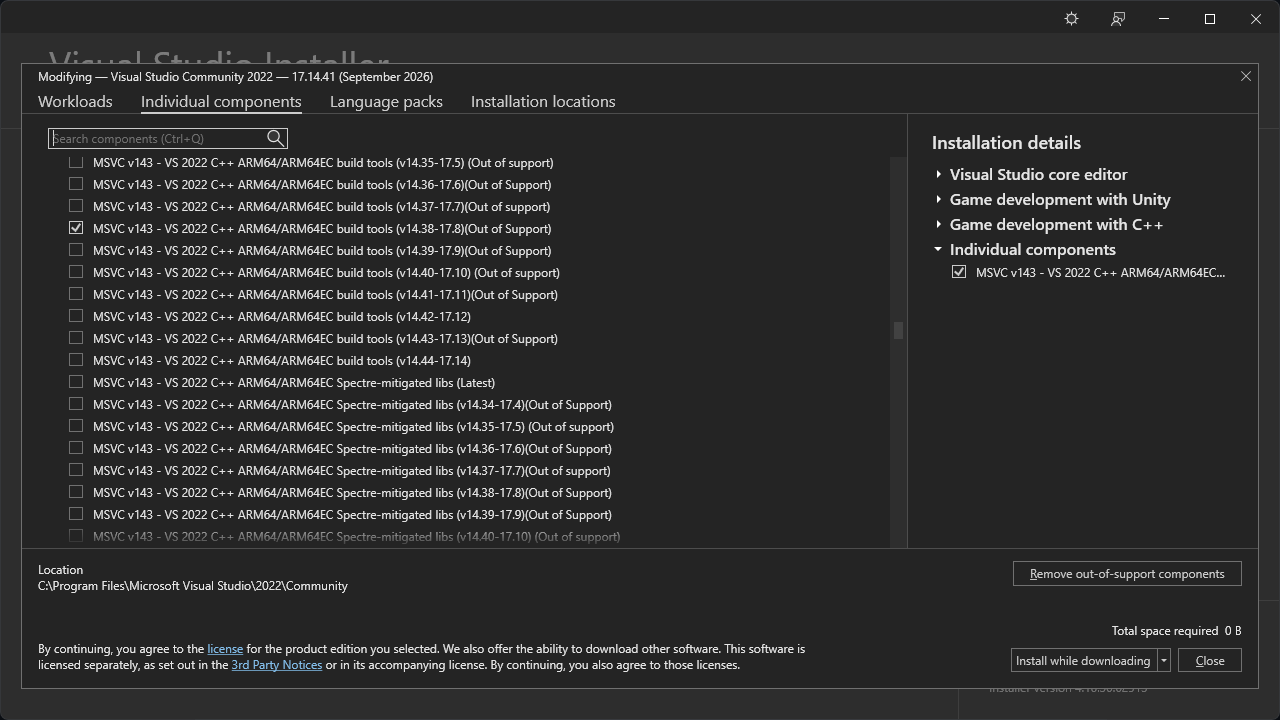
Image Builder Image Recipe
The image recipe ties all components together in order.
  ImageRecipe:
    Type: AWS::ImageBuilder::ImageRecipe
    Properties:
      Name: !Sub ${ResourceName}
      Version: 1.0.0
      ParentImage: !Sub arn:${AWS::Partition}:imagebuilder:${AWS::Region}:aws:image/windows-server-2025-english-full-base-x86/x.x.x
      BlockDeviceMappings:
        - DeviceName: /dev/sda1
          Ebs:
            VolumeSize: 250
            VolumeType: gp3
      Components:
        - ComponentArn: !Ref AwsCliComponent
        - ComponentArn: !Ref CloudWatchAgentComponent
        - ComponentArn: !Ref 7ZipComponent
        - ComponentArn: !Ref GitComponent
        - ComponentArn: !Ref GitLfsComponent
        - ComponentArn: !Ref GitHubActionsRunnerComponent
        - ComponentArn: !Ref VisualStudioComponent
Why 250GB? Unreal Engine installations and build artefacts consume significant disk space. Between the engine (~50GB installed), Visual Studio (~30GB), and intermediate build files, undersizing the volume causes failures mid-build - after you’ve already paid for an hour of compute.
Image builder AMI distribution configuration
The distribution configuration tells Image Builder how to publish the finished AMI.
  DistributionConfiguration:
    Type: AWS::ImageBuilder::DistributionConfiguration
    Properties:
      Name: !Sub ${ResourceName}
      Distributions:
        - Region:
            Ref: AWS::Region
          AmiDistributionConfiguration:
            Name: !Sub ${ResourceName}-{{imagebuilder:buildDate}}
            Description: Windows Server 2025 with Unreal Engine base components installed
The AMI is published to the same region as the Image Builder resources using the build date.
Image pipeline
The image pipeline ties together the recipe, infrastructure configuration, and distribution configuration and enables it.
  ImagePipeline:
    Type: AWS::ImageBuilder::ImagePipeline
    Properties:
      Name: !Sub ${ResourceName}
      ImageRecipeArn:
        Ref: ImageRecipe
      InfrastructureConfigurationArn:
        Ref: InfrastructureConfiguration
      DistributionConfigurationArn:
        Ref: DistributionConfiguration
      Status:
        ENABLED
Lowercase Lambda
A small Python 3.8 Lambda that lowercases a given string to lowercase the AMI name.
  LowerCaseLambda:
    Type: AWS::Lambda::Function
    Properties:
      FunctionName: lowercase-string
      Description: Returns the lowercase version of a string
      MemorySize: 128
      Runtime: python3.14
      Handler: index.lambda_handler
      Role: !GetAtt LowerCaseLambdaRole.Arn
      Timeout: 30
      Code:
        ZipFile: |
          import cfnresponse

          def lambda_handler(event, context):
              output = event['ResourceProperties'].get('InputString', '').lower()
              responseData = {'OutputString': output}
              cfnresponse.send(event, context, cfnresponse.SUCCESS, responseData)
Lowercase Lambda role
Allows the Lowercase Lambda function to write to CloudWatch logs.
  LowerCaseLambdaRole:
    Type: AWS::IAM::Role
    Properties:
      AssumeRolePolicyDocument:
        Version: '2012-10-17'
        Statement:
          - Effect: Allow
            Principal:
              Service:
                - !Sub 'lambda.${AWS::URLSuffix}'
            Action:
              - sts:AssumeRole
      Policies:
        - PolicyName: LowerCaseStringLambdaWriteLogs
          PolicyDocument:
            Version: '2012-10-17'
            Statement:
              - Effect: "Allow"
                Action:
                  - logs:CreateLogGroup
                  - logs:CreateLogStream
                  - logs:PutLogEvents
                Resource: arn:aws:logs:*:*
Lowercase image name custom resource
Custom resource that invokes the Lambda to produce a guaranteed-lowercase name.
  LowerCaseImageName:
    Type: Custom::Lowercase
    Properties:
      ServiceToken: !GetAtt LowerCaseLambda.Arn
      InputString: !Ref ResourceName
Outputs
Returns the image builder pipeline ARN – used in the GitHub Actions workflow that starts image pipeline execution.
Outputs:
  ImageBuilderPipelineArn:
    Description: Image Builder Pipeline ARN
    Value:
      Ref: ImagePipeline
EC2 Image Builder IAM policy
The IAM policy for the EC2 Image Builder permits the following actions:
- PublishToSNS – publishing success/failure notifications to an SNS topic for Image Builder
- ManageIAM – creating, inspecting, modifying, and deleting roles, policies, and instance profiles.
- CreateServiceLinkedRole – allows creating a service-linked role that allows
spotfleet.amazonaws.comto manage Spot Fleet resources. - SpotFleetPassRole – allows the Spot Fleet to pass the role to the instances it launches.
- ManageImageBuilder – allows full CRUD over Image Builder components, recipes, infrastructure, configurations, distribution configurations, and pipelines, as well as starting pipeline execution and reading image information.
- ManageSecretsManager – allows creating, updating, and deleting the GitHub App installation key used by the runner token Lambda (covered in the next post).
{
    "Version": "2012-10-17",
    "Statement": [
        {
            "Sid": "PublishToSNS",
            "Effect": "Allow",
            "Action": "SNS:Publish",
            "Resource": "arn:aws:sns:[Region]:[AccountID]:UnrealBuildServerImage"
        },
        {
            "Sid": "ManageIAM",
            "Effect": "Allow",
            "Action": [
                "iam:CreateInstanceProfile",
                "iam:DeleteInstanceProfile",
                "iam:GetRole",
                "iam:GetInstanceProfile",
                "iam:TagRole",
                "iam:RemoveRoleFromInstanceProfile",
                "iam:DeletePolicy",
                "iam:CreateRole",
                "iam:DeleteRole",
                "iam:AttachRolePolicy",
                "iam:PutRolePolicy",
                "iam:AddRoleToInstanceProfile",
                "iam:CreatePolicy",
                "iam:DetachRolePolicy",
                "iam:DeleteRolePolicy",
                "iam:GetRolePolicy"
            ],
            "Resource": "*"
        },
        {
            "Sid": "CreateServiceLinkedRole",
            "Effect": "Allow",
            "Action": "iam:CreateServiceLinkedRole",
            "Resource": "arn:aws:iam::*:role/aws-service-role/://amazonaws.com",
            "Condition": {
                "StringLike": {
                    "iam:AWSServiceName": "spotfleet.amazonaws.com"
                }
            }
        },
        {
            "Sid": "SpotFleetPassRole",
            "Effect": "Allow",
            "Action": "iam:PassRole",
            "Resource": "*",
            "Condition": {
                "StringEquals": {
                    "iam:PassedToService": [
                        "ec2.amazonaws.com",
                        "ec2.amazonaws.com.cn"
                    ]
                }
            }
        },
        {
            "Sid": "ManageImageBuilder",
            "Effect": "Allow",
            "Action": [
                "imagebuilder:DeleteDistributionConfiguration",
                "imagebuilder:GetComponent",
                "imagebuilder:GetImagePipeline",
                "imagebuilder:UpdateDistributionConfiguration",
                "imagebuilder:DeleteComponent",
                "imagebuilder:GetImageRecipe",
                "imagebuilder:StartImagePipelineExecution",
                "imagebuilder:CreateImageRecipe",
                "imagebuilder:CreateDistributionConfiguration",
                "imagebuilder:GetDistributionConfiguration",
                "imagebuilder:DeleteInfrastructureConfiguration",
                "imagebuilder:CreateInfrastructureConfiguration",
                "imagebuilder:GetImage",
                "imagebuilder:CreateImagePipeline",
                "imagebuilder:GetInfrastructureConfiguration",
                "imagebuilder:CreateComponent",
                "imagebuilder:DeleteImagePipeline",
                "imagebuilder:DeleteImageRecipe",
                "imagebuilder:UpdateInfrastructureConfiguration"
            ],
            "Resource": "*"
        },
        {
            "Sid": "GetGitHubAppInstallationKey",
            "Effect": "Allow",
            "Action": [
              "secretsManager:DeleteSecret",
              "secretsManager:UpdateSecret",
              "secretsmanager:GetSecretValue",
              "secretsmanager:CreateSecret"
            ],
            "Resource": "arn:aws:secretsmanager:[Region]:[AccountID]:secret:/github/actions/runner-key-*"
        }
    ]
}
Deployment via GitHub Actions
Two workflows handle the lifecycle: deploying and running the base image pipeline.
Deploying Base Image Pipeline
name: Deploy Base Image Build Pipeline

on:
  workflow_dispatch:
  push:
    branches:
      - main
    paths:
      - ".github/workflows/deploy-base-image-pipeline.yml"
      - "base-image-pipeline-infra.yml"

env:
  PROJECT_NAME: "UnrealBuildServerBaseImage"
  AWS_REGION: "ap-southeast-2"
  INSTANCE_TYPE: "c5.xlarge"

permissions:
  id-token: write
  contents: read

jobs:
  DeployStack:
    runs-on: ubuntu-latest

    steps:
      - name: Clone repository
        uses: actions/checkout@v7

      - name: Configure AWS credentials
        uses: aws-actions/configure-aws-credentials@v6
        with:
          role-to-assume: ${{ secrets.IAM_ROLE }}
          role-session-name: ${{ env.PROJECT_NAME }}
          aws-region: ${{ env.AWS_REGION }}

      - name: Remove existing CloudFormation stack
        run: |
          aws cloudformation delete-stack --stack-name ${{ env.PROJECT_NAME }}Stack
          aws cloudformation wait stack-delete-complete --stack-name ${{ env.PROJECT_NAME }}Stack

      - name: Deploy CloudFormation stack
        uses: aws-actions/aws-cloudformation-github-deploy@v2
        id: deploy
        with:
          name: ${{ env.PROJECT_NAME }}Stack
          template: ${{ github.workspace }}/base-image-pipeline-infra.yml
          parameter-overrides:
            "InstanceType=${{ env.INSTANCE_TYPE }},\
            SnsTopicArn=${{ secrets.SNS_TOPIC_ARN }}"
          capabilities: 'CAPABILITY_NAMED_IAM'
I delete and redeploy the stack rather than updating it – update operations consistently errored out. Since Image Builder creates immutable AMIs, this approach doesn’t affect existing builds.
Running the base image pipeline
name: Run Base Image Build Pipeline

on:
  workflow_dispatch:

env:
  PROJECT_NAME: "RunUnrealBuildServerBaseImagePipeline"
  AWS_REGION: "ap-southeast-2"
  BUILD_IMAGE_STACK_NAME: "UnrealBuildServerBaseImageStack"

permissions:
  id-token: write
  contents: read

jobs:
  RunImagePipeline:
    runs-on: ubuntu-latest

    steps:
      - name: Clone repository
        uses: actions/checkout@v7

      - name: Configure AWS credentials
        uses: aws-actions/configure-aws-credentials@v6
        with:
          role-to-assume: ${{ secrets.IAM_ROLE }}
          role-session-name: ${{ env.PROJECT_NAME }}
          aws-region: ${{ env.AWS_REGION }}

      - name: Get pipeline ARN
        id: get-pipeline-arn
        run: |
          IMAGE_STACK_PIPELINE_ARN=$(aws cloudformation describe-stacks \
            --stack-name ${{ env.BUILD_IMAGE_STACK_NAME }} \
            --query "Stacks[0].Outputs[?OutputKey=='ImageBuilderPipelineArn'].OutputValue" \
            --output text)

          echo "PIPELINE_ARN=$IMAGE_STACK_PIPELINE_ARN" >> $GITHUB_OUTPUT

      - name: Start pipeline execution
        id: start-pipeline-execution
        run: |
          aws imagebuilder start-image-pipeline-execution --image-pipeline-arn ${{ steps.get-pipeline-arn.outputs.PIPELINE_ARN }}
Build Time: On a c5.xlarge instance, the full cycle - from EC2 launch through AMI registration—takes 30–40 minutes, dominated by the Visual Studio download and install.
Wrapping Up
Notice the Epic Games Launcher is not actually installed – automating Unreal Engine downloads requires login credentials and two-factor authentication, which command-line tools don’t support cleanly.
The eagle-eyed among you will notice that the Epic Games Launcher is not actually installed on the AMI. Initially I considered installing it so that Unreal Engine could be downloaded and installed, but I soon realised that would require logging in.
In Part 2, I’ll cover:
- The workaround for installing specific Unreal Engine versions
- A Lambda function that retrieves GitHub tokens automatically
- How the runner self-registers on each Spot Instance spin-up
Until then, the base AMI is ready to accept engine installations – and that’s where things get interesting.
Related Posts
2026-01-09
2026-01-07
2026-08-20