Backing up GitHub repositories

After a litany of outages on GitHub, horror stories of people losing their Blogger blogs, broadcasters losing years of data in cloud storage and Google account suspensions, I suddenly realised I had no offline backups of my GitHub repositories.
I’d heard of this kind of thing happening to blogs, but I didn’t expect it to happen to GitHub so soon. And with AI agents known for deleting random shit, I decided it was time to find a solution that could reliably back up my repositories.
I was starting to build up a fair number of repositories on GitHub, so I wanted something that could back them up both locally and to the cloud, on a schedule, without any manual steps.
What I didn’t want
I’m already using Cloud Sync on a Synology NAS, but installing the Git Server package would have meant giving every repository multiple remotes. On top of that, I have a policy of running as little software on the NAS as possible given its limited resources.
I also considered Git hooks or some form of automated push process using a script - but that wasn’t quite what I wanted either. I needed something that would run on my Mac Mini and pull the repositories down on a schedule.
Finally, I toyed with writing my own shell script that runs on the NAS against a scheduled task, but the whole approach felt clunky.
So I started searching for existing backup solutions.
GitHub Marketplace
I eventually landed on the ‘Backing up a repository’ page in the GitHub Docs, which pointed me to the GitHub Marketplace.
There, I found a few products:
| Name | Description |
|---|---|
| SimpleBackups | Free but only one backup job offered |
| GitReplica | Replicates between cloud providers, not locally |
| GitProtect | Fully commercial enterprise product |
| GitBackups | Relatively cheap but not 100% free |
None of these fit the bill. My use case isn’t particularly critical - I just wanted a way to pull my repositories down locally - and since the NAS already handles offsite copies via Cloud Sync, I’d rather something free and open source.
After some trawling, I stumbled across this Reddit thread and a blog post that both mentioned an application called Gickup.
Gickup
Judging by that blog post and the documentation, Gickup seemed pretty straightforward: configure a source and a destination, run the Docker container and job done.
As is always the case, I hit a few snags during the initial set-up.
LFS error
On the first run, regular repositories cloned just fine, but repositories using LFS gave an authentication error on pull.
Running the exact same commands in Terminal worked without issue, which pointed to something permission-related. When I created the token I’d used a ‘fine-grained token’, limited ‘Repository access’ to ‘All repositories’ and scoped the permissions to ‘Contents’.
When it failed again, I tried the “everything” test and selected all the permissions. Same error.
In a moment of mild frustration, I fell back to a classic token:
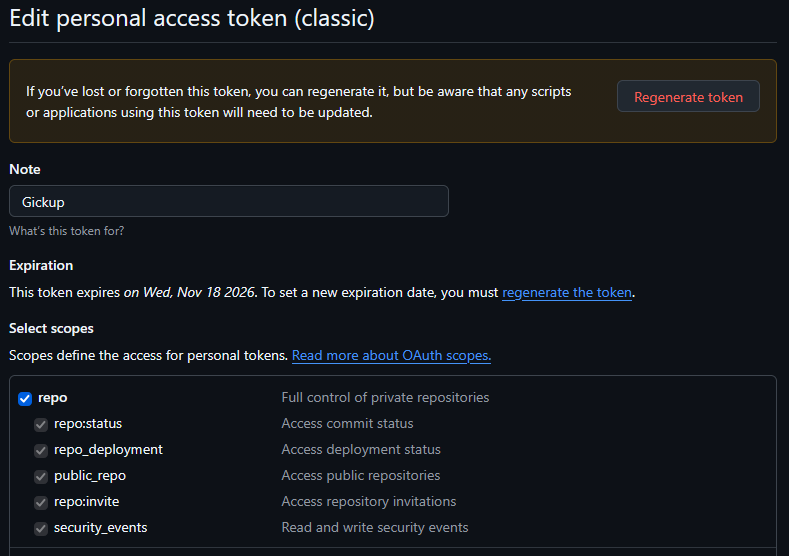
Lo and behold, the repositories started downloading without any issues.
My best guess at the cause: LFS objects are fetched over separate HTTP endpoints to the main Git transfer protocol, and fine-grained tokens don’t grant access to those endpoints in the same way the repo scope on a classic token does. Whichever way you slice it, if you’re backing up repositories that use LFS with Gickup, a classic token is the path of least resistance.
Cloning to an SMB share
The repositories downloaded just fine, but cloning to an SMB share threw another mysterious error: git exit code 128.
I did some searching around, but nothing I found pointed to the cause.
Since Gickup is open source, I was able to inspect what it was doing under the hood and found it simply calls Git on the command-line - so I tried cloning directly to the SMB share.
Long story short, Google eventually suggested the following values in /etc/nsmb.conf:
[default]
file_id_auth=yes
signing_required=no
strict_locking=nofile_id_auth=yes- Enables using file ID-based authentication or trackingsigning_required=no- Disables mandatory SMB packet/session signing for client requestsstrict_locking=no- Disables strict byte-range locking enforcement on the client side
With those in place, the repositories using LFS cloned and zipped up on the SMB share without issue.
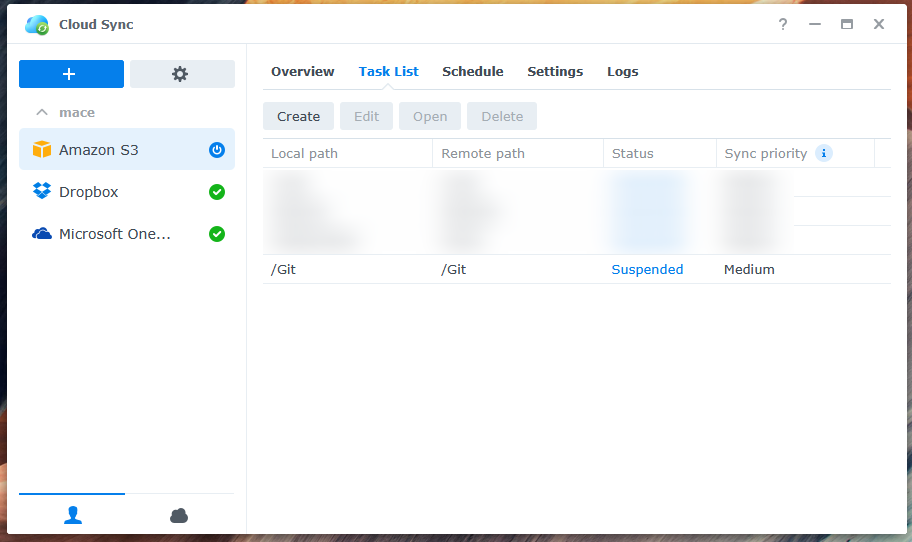
All that was left was to create a task in Cloud Sync on the NAS and mission complete 🙂
Configuration file
My Gickup configuration is fairly straightforward and doesn’t deviate much from the example file:
- Run every Friday at 3am
- Pull from GitHub, including the
sawnoff-studiosorganisation - Exclude wikis, issues, starred repositories and contributed repositories
- Include all Gists I’ve created
- Download and zip the repositories to the
/backupspath - Place the repositories in the root of the folder
- Keep only the last 5 backups
- Create bare repositories
- Create mirror clones
- Use Git LFS to pull large binary objects
# yaml-language-server: $schema=https://raw.githubusercontent.com/cooperspencer/gickup/refs/heads/main/gickup_spec.json

# run the backup every Friday at 3:00 AM
#cron: "0 1 * * 5"

log: # optional
  timeformat: 2006-01-02 15:04:05 # you can use a custom time format, use https://yourbasic.org/golang/format-parse-string-time-date-example/ to check how date formats work in go
  # or set it as environment variable GICKUP_TIME_FORMAT
  file-logging: # optional
    dir: /logs # directory to log into
    file: gickup.log # file to log into
    maxage: 7 # keep logs for 7 days

source:
  github:
    - token: [redacted]
      # alternatively, specify token in a file, relative to current working directory when executed.
      # token_file: token.txt
      # user: maceage # the user you want to clone the repositories from.
      # if you want to get everything from your user, leave out the user parameter and just use the token.
      # url: https://example.ghe.com # optional: GitHub Enterprise Server base URL; defaults to https://github.com
      # for the clone process, either use:
      # - username + password
      # - sshkey
      # - token
      # username: your-user # user is used to clone the repo with
      # password: your-password
      # ssh: true # can be true or false
      # sshkey: /path/to/key # if empty, it uses your home directories' .ssh/id_rsa
      # exclude: # this excludes the repos "foo" and "bar"
      #   - foo
      #   - bar
      # include: # this includes the repo "foobar"
      #   - foobar
      # excludeorgs: # this excludes repos from the organizations "foo" and "bar"
      #   - foo
      #   - bar
      includeorgs: # this includes repos from the organizations "foo1" and "bar1"
        - sawnoff-studios
      wiki: false # includes wiki too
      issues: false # back up issues, works only locally
      starred: false # includes the user's starred repositories too
      contributed: false # includes repositories the user contributed to
      # filter:
      #   stars: 100 # only clone repos with 100 stars
      #   lastactivity: 1y # only clone repos which had activity during the last year
      #   excludearchived: true
      #   # languages: # only clone repositories with the following languages
      #   #   - go
      #   #   - java
      #   excludeforks: true # exclude forked repositories
      gists: true # clone gists too
    # alternatively, authenticate with a GitHub App:
    # - app_id: 123456                              # GitHub App ID (numeric)
    #   app_installation_id: 78901234               # Installation ID of the App on the target account
    #   app_private_key_file: /path/to/private.pem  # path to the App's RSA private key PEM file
    #   user: some-user                             # user or org whose repos to back up (optional if App is self-installed)
    #   organization: some-org                      # alternatively back up an organization's repos
    #   ssh: false                                  # note: 'contributed' is not supported with App auth

destination:
  local:
    # Export this path from Docker with a volume to make it accessible and more permanent.
    - path: /backups
      structured: false # checks repos out like hostersite/user|organization/repo
      zip: true # zips the repository after cloned and removes the repository afterwards
      keep: 5 # only keeps x backups
      bare: true # clone the repositories as bare
      mirror: true # create mirror clones
      lfs: true # clone lfs repos, !! ATTENTION !! git and git-lfs must be installed on the system!
Docker Compose file
One of the simpler Docker Compose files I’ve written, my setup for Gickup is as follows:
services:
  gickup:
    image: ghcr.io/cooperspencer/gickup
    container_name: gickup
    hostname: gickup
    domainname: ${DOMAINNAME}
    restart: unless-stopped
    environment:
      - PUID
      - PGID
      - TZ
    volumes:
      - ${VOLUMES_GICKUP}/conf.yml:/gickup/conf.yml:ro
      - ${VOLUMES_BACKUPS}:/backups
      - ${VOLUMES_LOGS}:/logs
    security_opt:
      - no-new-privileges:true
Wrapping Up
During my travels I also found Soba, an alternative that I’ve yet to try but looks like it could be a good option.
If Gickup starts causing issues, Soba will be the first thing I look at.